

Feature
Social Media Asset Management for Frontline Workers
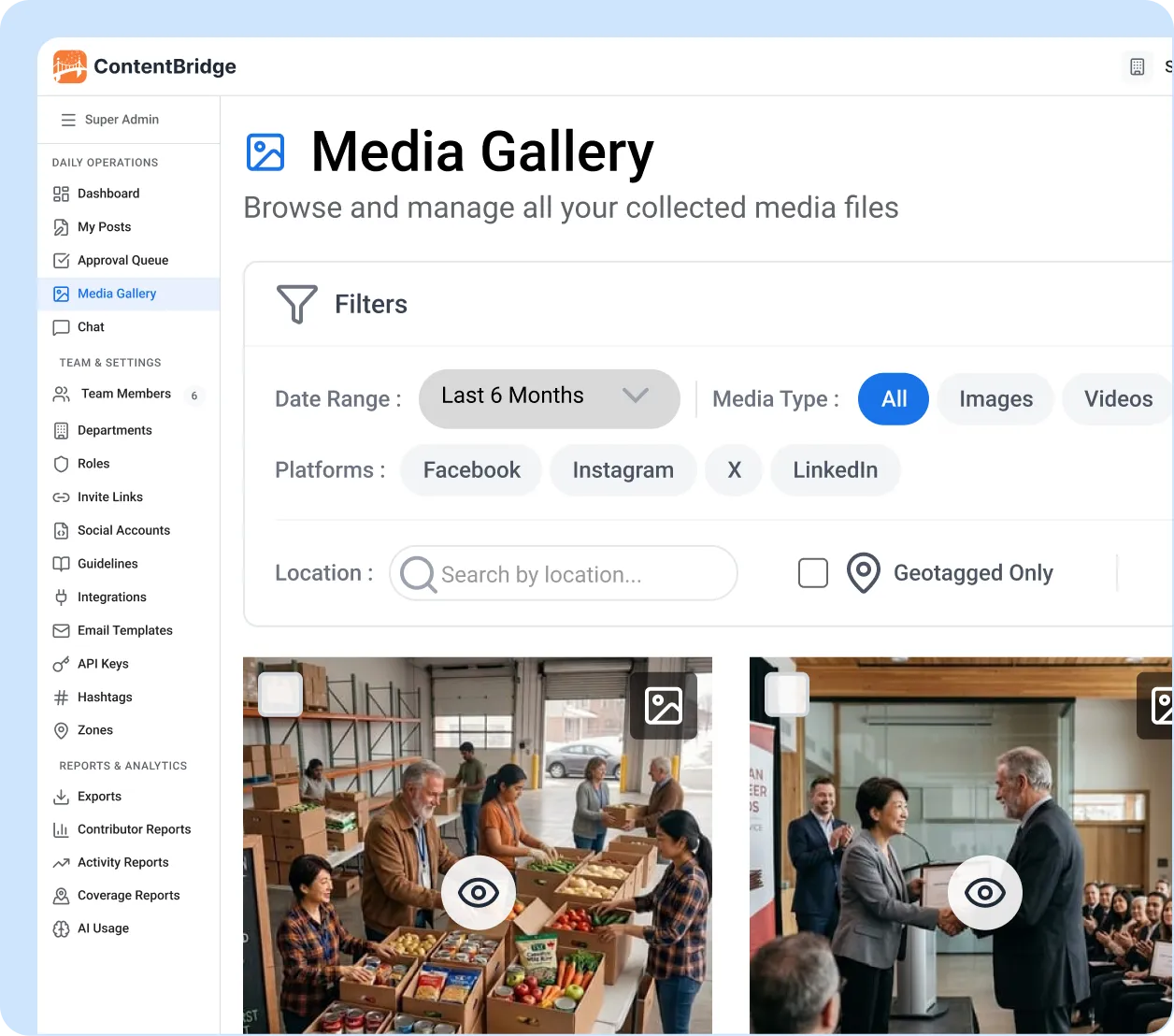
Your officers, nurses, franchise employees, and field staff capture hundreds of photos every week. Most of those photos disappear into personal devices, WhatsApp groups, and mislabelled shared drives. ContentBridge funnels every uploaded photo and video into one centralized, filterable media library. Browse by creator, location, date, platform, or usage status across your entire organization.
6 filter types
to find any photo
1-click
bulk ZIP export
Auto-tagged
with creator, date, location
Why Organizations Without Social Media Media Library Tools Lose Control of Their Own Photos
Getting people to take photos is not the problem. What happens to those photos after they are taken is. Without social media asset management software, multi-location organizations lose content in three predictable ways.

Field Photos Live on Personal Phones Where Marketing Will Never Find Them
Photos captured by frontline workers stay trapped in personal camera rolls, WhatsApp groups, and email threads that marketing never sees. A Biscom survey found that 87% of employees take data they created with them when they leave. Every departure removes photos that were never collected into a single system.

Finding One Photo Means Scrolling Through Thousands of Unnamed Files
Photos that do reach marketing land in shared drives with no tags, no dates, and no searchable metadata. A Canto survey of 500 marketing professionals found that one in three marketers spends roughly three weeks per year just searching for images and videos. Manual scrolling through unnamed folders is not a search strategy; a centralized media library for social media is.

Every Photo Sent Through WhatsApp Loses Most of Its Original Quality
Every transfer through WhatsApp, text message, or email compresses the original image. According to WhatsApp’s own technical specifications, standard transfers reduce file sizes by up to 87%. By the time a photo reaches marketing, it is too compressed for professional social posts or website banners.
How ContentBridge Turns Scattered Field Photos Into a Centralized Media Library for Social Media
No shared drives. No WhatsApp groups. No unnamed folders. Social media content asset management starts the moment your frontline workers upload a photo, and every file flows into one centralized content library with full metadata attached automatically.
Every Photo Uploads to One Gallery When Workers Create Posts
When a frontline worker creates a post in ContentBridge and attaches a photo or video, that file is stored in the media gallery automatically. The worker does not need to take any extra steps. The gallery captures the creator’s name, upload date, geo-tagged GPS location, target platform, and media type without manual tagging or folder sorting. The result is digital asset management for social media teams built around a single source of truth for all employee-generated visual content across your organization.
- Photos and videos stored automatically during post creation
- Creator name, date, and location attached to every upload
- Original file quality preserved (no messaging app compression)
- Mobile photo upload from any device, plus desktop browser support
Filter and Find the Right Photo in Seconds, Not Hours
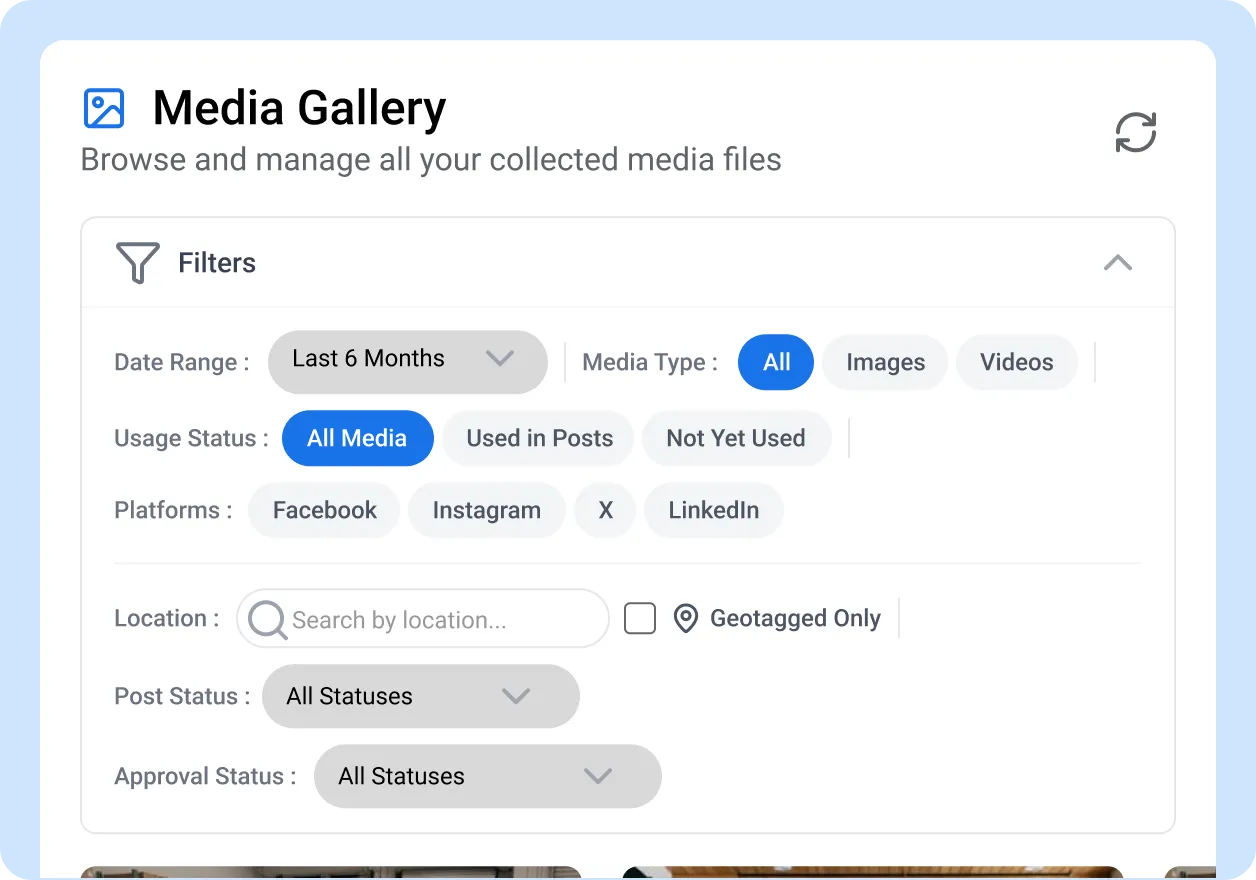
The media gallery displays all content in a Pinterest-style visual grid. Six filter types let you narrow results immediately: date range, media type (photo or video), usage status (published or unused), platform, creator, and location. Combine filters to find exactly what you need. View all unused photos from a specific city taken in the last 30 days in two clicks.
- Pinterest/Instagram-style visual grid layout
- Filter by date, media type, usage status, platform, creator, location
- Combine multiple filters for precise results
- Usage status shows which photos have been published and which are still available
Preview Any Photo With Full Metadata Before You Use It
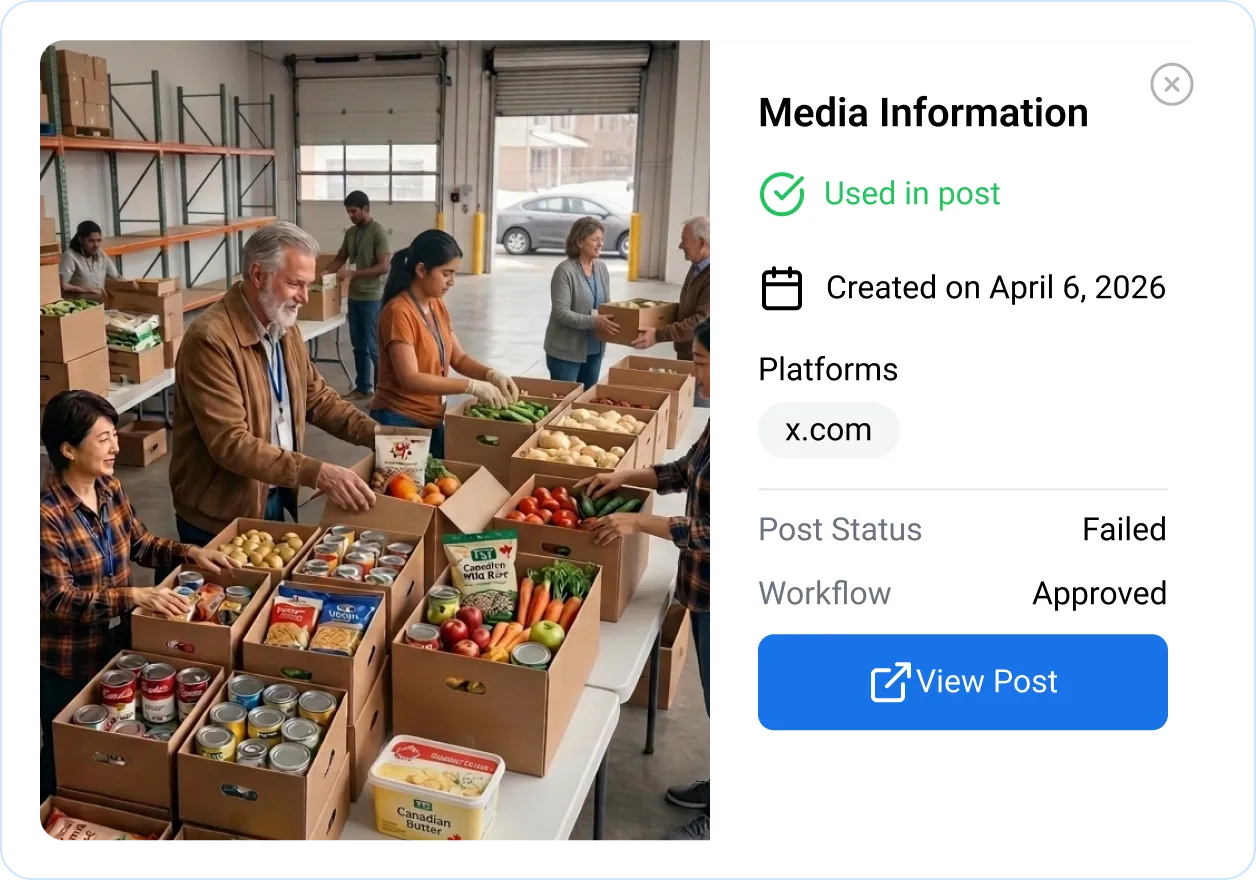
Click any thumbnail to open a full media preview. See the image at full resolution alongside its metadata: who uploaded it, when, from which location, for which platform, and whether it has been published. This is the context that disappears when photos are emailed or dropped into shared folders. Every photo in ContentBridge carries its history with it. This is what separates social media asset management software from a basic shared drive, making informed content reuse possible at scale.
- Full-resolution media preview in the browser
- Creator, date, location, platform, and usage metadata displayed
- See which post the media was originally attached to
- Decide whether to reuse, export, or skip without downloading
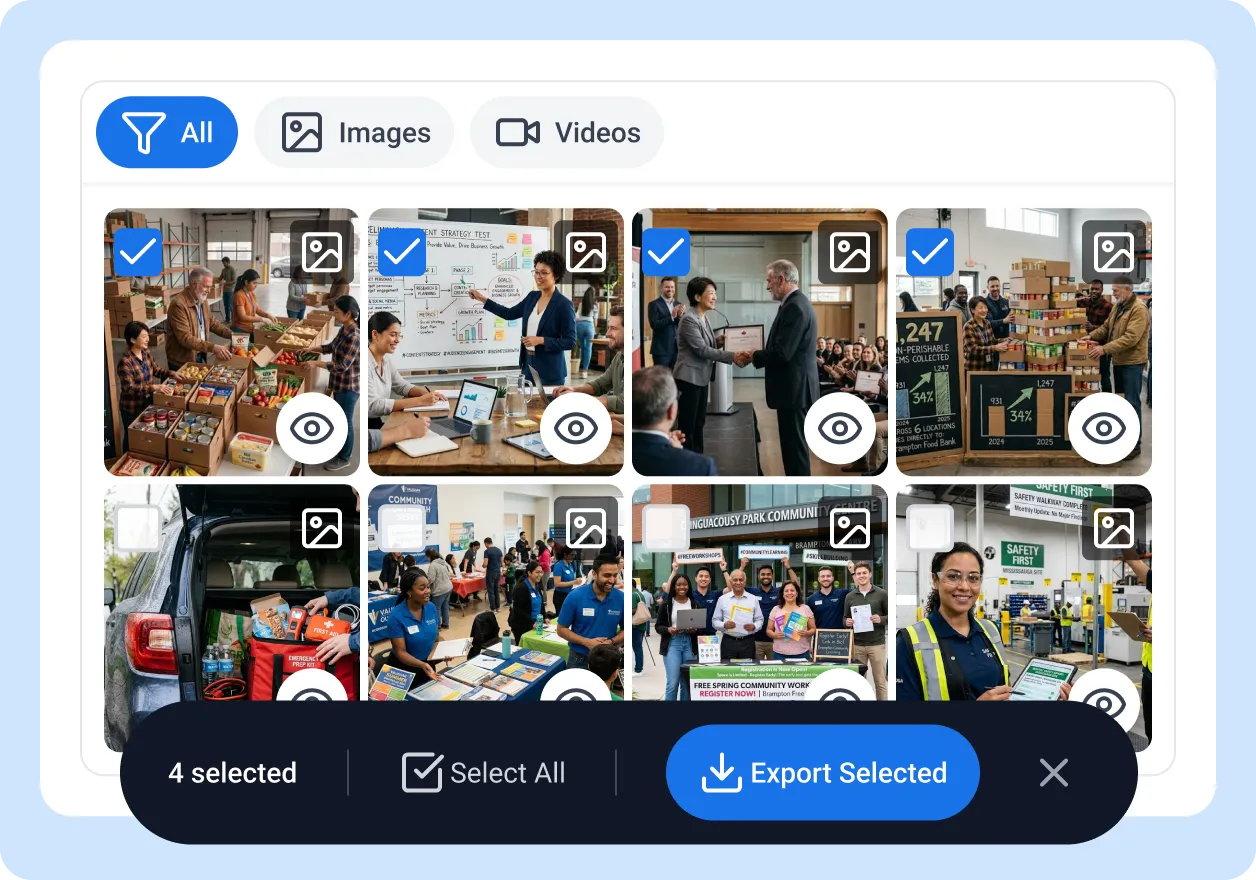
Select What You Need and Export as a ZIP in One Click
Select individual photos or use bulk select to grab dozens at once. ContentBridge packages your selection into a ZIP file and shows real-time download progress. No more downloading files one at a time from a shared drive. Pull all photos from a specific department, location, or date range in a single export for campaigns, reports, or compliance requests.
- Bulk select across the gallery grid
- One-click ZIP export with progress tracking
- Filter first, then export the filtered set
- Export for campaigns, media kits, or compliance documentation
What Makes ContentBridge Social Media Asset Management Software Built for Enterprise Photo Management
A cloud-based social media media library with every capability designed for teams managing thousands of photos from hundreds of contributors across dozens of locations.

Pinterest-Style Visual Grid
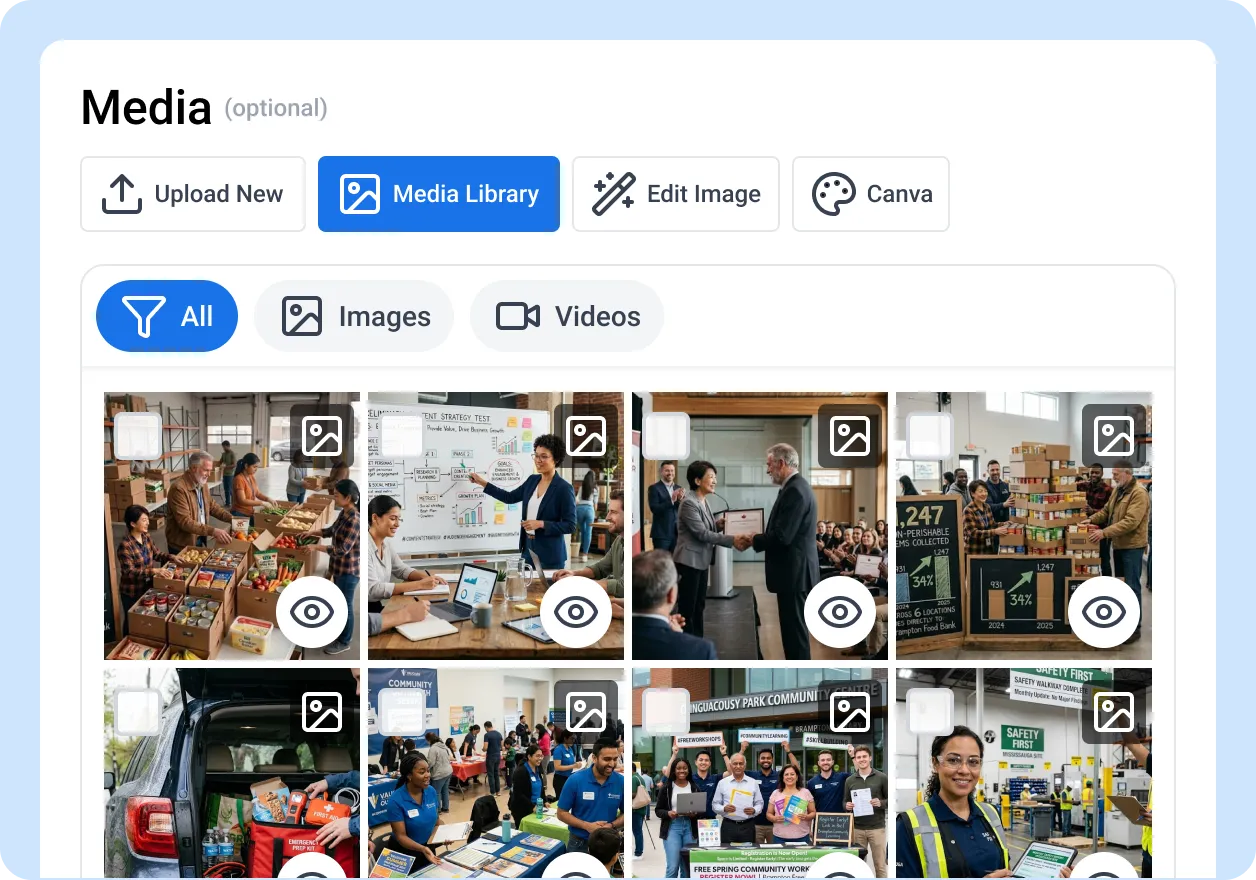
Browse all media as visual thumbnails in a responsive grid layout. See what each photo looks like before clicking into it. Scroll through hundreds of images quickly without opening files individually or reading file names.

Six Filter Types
Filter by date range, media type, usage status, platform, creator, or location. Combine multiple filters to narrow results. These are the social media media library tools that let you find all unused videos from a specific region taken this quarter in two clicks instead of scrolling through folders.

Usage Status Tracking
Every media file shows whether it has been published to a social channel or remains unused. Filter the gallery to see available content your team has not deployed yet. Avoid publishing the same photo twice or missing content that was captured but never used.

Full Preview With Metadata
Open any photo or video in a full-resolution preview with its complete metadata: creator name, upload date, GPS location, target platform, and usage history. This is the kind of structured social media asset management that replaces scattered folders and email attachments.

Bulk Select and ZIP Export
Select dozens of photos at once and export them as a single ZIP file with real-time progress tracking. Pull media for campaigns, media kits, compliance requests, or quarterly reports without downloading files one at a time.

Canva Integration (Coming Soon)
Connect your Canva account to browse existing brand assets, import visual designs, and create new content directly within ContentBridge. Export finished designs as PNG, JPG, PDF, MP4, or GIF and attach them to posts without switching between tools.

”Before ContentBridge, our regional managers emailed photos to headquarters in batches. Most arrived compressed through WhatsApp and sat in a shared drive with no labels. Finding a photo from a specific store opening meant scrolling through thousands of files in a folder called ‘Photos 2025.’ Since we rolled out ContentBridge across 120 locations, every photo uploads directly to the media gallery with the creator’s name, location, and date attached automatically. Our marketing coordinator found 47 usable photos for our spring campaign in under ten minutes using the location and date filters. We used to spend two full days pulling together content for a single campaign.”

James Faulkner, VP of Marketing
Common Questions About the ContentBridge Media Gallery
How does ContentBridge organize photos and videos from frontline workers?
Every photo and video uploaded through ContentBridge during post creation is automatically stored in the media gallery. The gallery displays all media in a Pinterest-style visual grid. Each upload is tagged with the creator’s name, upload date, GPS location (if enabled), target platform, and media type. There is no manual tagging, folder creation, or file naming required. If you have been searching for how to organize social media photos and videos across a large team, this is the answer: media is organized the moment it enters the system, giving your organization a centralized media library without any manual effort.
Can ContentBridge filter media by location, date, or creator?
Yes. The media gallery includes six filter types: date range, media type (photo or video), usage status (published or unused), platform, creator, and location. You can combine filters to narrow results quickly. For example, you can view all unused photos from a specific location taken in the last 30 days. This replaces manual scrolling through shared drives or folder-based searching with proper social media content asset management built into every search.
Does ContentBridge track which photos have been published?
Yes. Every media file in the gallery has a usage status that shows whether it has been published to a social channel or remains unused. You can filter the entire gallery by usage status to see which content has not been deployed yet. This helps marketing teams identify available content and avoid duplicate publishing.
Do frontline workers need access to the full media gallery?
Access to the media gallery is controlled by your organization’s role-based permissions. You can configure which roles can view, browse, and export from the gallery. Frontline workers interact with media through the post creation screen and media library picker. They do not need direct access to the full gallery unless your permissions allow it.
How quickly can we start using the media gallery after onboarding?
The media gallery is cloud-based and available immediately after your organization’s ContentBridge account is set up. There is no separate activation or configuration required. As soon as frontline workers begin creating posts with photos and videos, those files appear in the gallery automatically. Organizations that import existing users through bulk CSV upload can have workers creating and uploading content within the same day.
Features That Work With the Media Gallery
The media gallery is where content lives after it is captured. These features control how it gets there and what you can learn from it.

AI Content Assistant
Automatically generate captions, rewrite drafts, suggest hashtags, and check brand compliance for social media posts with the AI content assistant for frontline workers.

Coverage Reports
See where content is being captured on an interactive map. Identify territories with strong media coverage and gaps where no field content has been submitted.

Department Management
Track which creators, departments, and locations are generating the most content. Measure approval rates and identify your most active contributors across the organization.